Solving Warehouse WiFi Coverage and Uptime IssuesDesign reliable warehouse WiFi coverage and uptime with warehouse wifi 6 ap, industrial wireless access points, and warehouse poe switches for racks and docks.
OLT Capacity Planning for GPON Access NetworksPlan OLT capacity for GPON OLT systems and EA5800 capacity planning, optimizing GPON split ratio and OLT uplink design for scalable fiber access.
Enterprise OLT Platform Selection for Fiber AccessDesign enterprise OLT platform strategy for GPON OLT platform, modular OLT chassis, and OLT service boards to scale passive optical LAN and XG-PON evolution.
Scale Data Center Networking Under Long Lead TimesScale data center networking faster under long lead times with data center spine switches, leaf spine data center designs and Cisco UCS fabric interconnects.
Tunnel Video Surveillance VLAN Stability over FiberDesign stable tunnel video surveillance VLANs using optical transport backbone and Arista fiber aggregation for resilient Huawei OptiX OSN CCTV networks.
Fiber vs Copper in Industrial Networks Design GuideCompare fiber vs copper in industrial ethernet, plan hybrid industrial fiber network designs, and select rugged ethernet switches and industrial SFP transceivers.
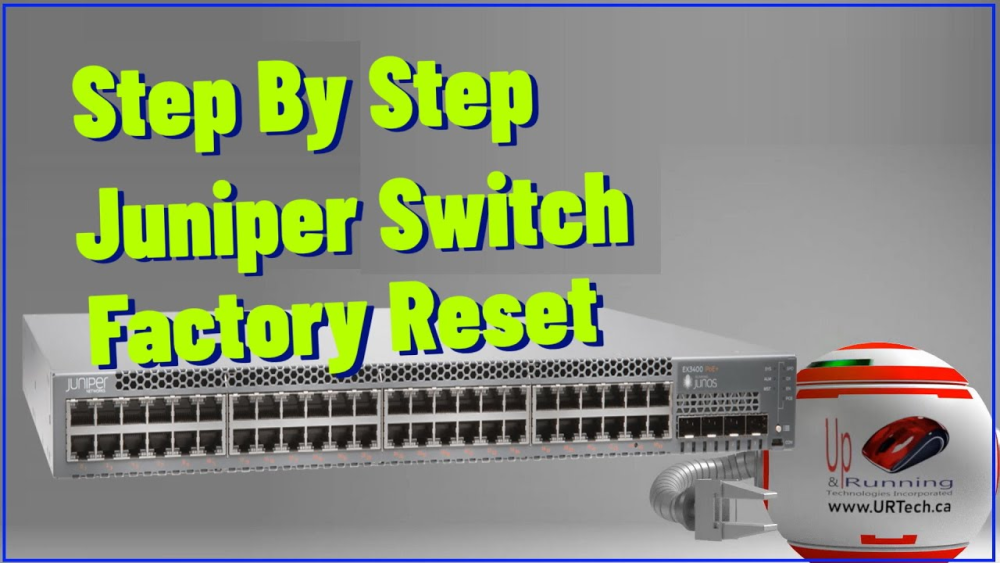
At some point, every network engineer or IT administrator faces a familiar challenge: a Juniper switch that needs a fresh start. Maybe you’ve forgotten the admin password, inherited second-hand equipment, or are preparing devices for a new deployment. In these cases, the quickest solution is often a factory reset.
A Juniper switch factory reset clears old configurations, restores default settings, and helps ensure a secure, predictable environment. The good news? It’s easier than you might think—once you know the right commands and steps.
This guide walks you through every practical method to reset a Juniper switch, explains what happens after the reset, and highlights the differences across EX, QFX, and SRX series. Whether you’re in a data center, a lab, or troubleshooting remotely, this article gives you the knowledge to do it with confidence.
A factory reset restores a Juniper device to its default configuration state, which may include:
Removing user-defined configurations.
Resetting admin credentials.
Clearing logs and temporary files (depending on the method).
Returning the device to a clean, ready-to-configure condition.
Note: A factory reset does not typically downgrade Junos OS. The software image stays unless you reinstall it manually.
Part 2: Methods to Perform a Factory Reset
Juniper offers multiple reset options depending on your access method. The most common are CLI commands, hardware reset button, and J-Web interface.
2.1 Using CLI Commands
Connect via console with a serial cable and terminal emulator.
Enter operational mode:
cli
To fully wipe all data:
request system zeroize
Removes configs, logs, and user files.
Device reboots automatically.
To reset only configuration:
load factory-default
commit
2.2 Using the Hardware Reset Button
On many EX switches, the RESET CONFIG button provides a quick reset option:
Hold 10 seconds → restores factory default config.
Hold 15 seconds → performs full zeroize.
Different models may vary slightly, so check your hardware manual for exact timing.
2.3 Using J-Web Interface
Log in to J-Web.
Navigate to Maintain > Factory Default.
Confirm the reset.
Part 3: Default Login After Factory Reset
After a reset, Juniper switches return to:
Username: root
Password: (none)
The system will prompt you to set a new root password before committing changes.
Part 4: Common Scenarios for Factory Reset
A factory reset is commonly used when:
Forgotten Password: Regain access to locked devices.
Second-Hand Equipment: Remove previous configurations and sensitive data.
Network Migration: Prepare hardware for a new environment.
Lab Testing: Reset repeatedly for training or simulations.
Persistent Issues: Use as a last resort in troubleshooting.
Part 5: Comparison of Reset Methods
Method
What It Resets
Removes OS?
Best For
load factory-default
Config only
No
Quick fixes and test lab resets
request system zeroize
Config + logs + user files
No
Security-sensitive environments
Reset Button
Varies by press duration
No
When CLI access is unavailable
J-Web Reset
Config reset via GUI
No
Remote management through web interface
Part 6: FAQs About Juniper Switch Factory Reset
Q1: What’s the difference between load factory-default and request system zeroize?
load factory-default restores configuration only. request system zeroize wipes all local data and logs.
Q2: Will factory reset downgrade Junos OS?
No, it only resets the configuration. The Junos version remains unchanged.
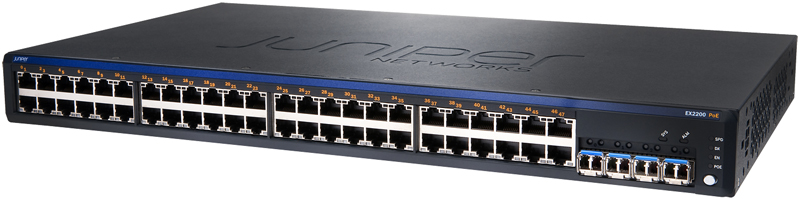
Q3: How do I reset an EX2200 switch?
Use the RESET CONFIG button or the CLI command request system zeroize.
Q4: What is the default login after reset?
Login is root with no password. You must set a new password immediately.
Q5: Can I reset remotely?
Yes, if SSH or J-Web access is available. Otherwise, console access is required.
Part 7: Quick Reference: Juniper Switch Factory Reset
Connect via console.
Enter CLI: cli
Full wipe: request system zeroize
Config only: load factory-default → commit
After reboot: login `root` (no password)
Set a strong root password immediately.
Conclusion
Performing a Juniper switch factory reset is a straightforward but powerful tool in a network engineer’s toolkit. From forgotten passwords to preparing equipment for a new deployment, knowing how to reset safely ensures minimal downtime and secure operations.
Choose the reset method that best fits your scenario—CLI for control, reset button for quick recovery, or J-Web for convenience. Once reset, secure your device immediately with strong credentials and updated access controls.
By following these steps, you can confidently reset and redeploy Juniper switches across EX, QFX, and SRX series, keeping your network running smoothly.