Solving Warehouse WiFi Coverage and Uptime IssuesDesign reliable warehouse WiFi coverage and uptime with warehouse wifi 6 ap, industrial wireless access points, and warehouse poe switches for racks and docks.
OLT Capacity Planning for GPON Access NetworksPlan OLT capacity for GPON OLT systems and EA5800 capacity planning, optimizing GPON split ratio and OLT uplink design for scalable fiber access.
Enterprise OLT Platform Selection for Fiber AccessDesign enterprise OLT platform strategy for GPON OLT platform, modular OLT chassis, and OLT service boards to scale passive optical LAN and XG-PON evolution.
Scale Data Center Networking Under Long Lead TimesScale data center networking faster under long lead times with data center spine switches, leaf spine data center designs and Cisco UCS fabric interconnects.
Tunnel Video Surveillance VLAN Stability over FiberDesign stable tunnel video surveillance VLANs using optical transport backbone and Arista fiber aggregation for resilient Huawei OptiX OSN CCTV networks.
Fiber vs Copper in Industrial Networks Design GuideCompare fiber vs copper in industrial ethernet, plan hybrid industrial fiber network designs, and select rugged ethernet switches and industrial SFP transceivers.
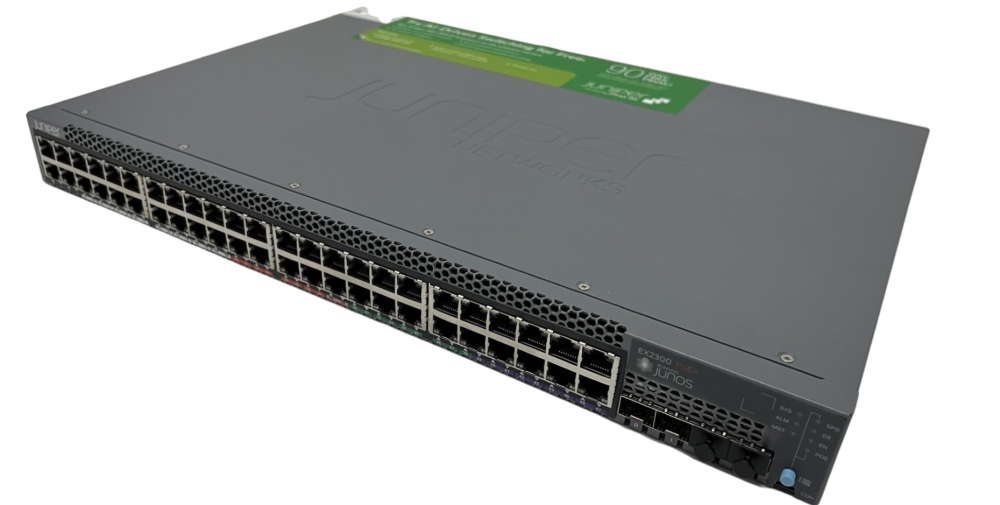
Juniper Networks devices—including EX series switches, SRX firewalls, and routers—are widely used in enterprise networks. Understanding the default username and password is essential for initial setup, troubleshooting, and secure configuration. While default credentials simplify first login, leaving them unchanged poses significant security risks. This guide walks you through default logins, password changes, factory resets, and security best practices for Juniper devices.
Part 1: Understanding Default Usernames and Passwords
When starting with a new Juniper device, knowing the default login credentials is essential. These defaults allow for initial configuration but differ slightly between device types and interfaces.
Device/Series
Default Username
Default Password
Notes
Junos OS devices (EX series, routers)
root
Blank (press Enter)
Required to set root password before committing configs
Older devices / J-Web interfaces
netscreen
netscreen
Web management access, e.g., 192.168.1.1
J-Web alternative
admin
admin
Less common, only certain J-Web scenarios
Session Smart Routers (SSR)
t128
128tRoutes
High-risk default, must change immediately
Tip: For most EX series (EX2200, EX3300, EX4200, EX4300), console login uses root with a blank password.
Part 2: The Critical Security Risks of Default Credentials
Before configuring your device, it’s important to understand why leaving default credentials unchanged is risky. Default passwords are often targeted by attackers and can compromise your entire network.
Botnet exploitation: Widely known defaults like t128 are actively scanned.
Unauthorized access: Attackers can gain full control.
Configuration manipulation: Unauthorized changes or malware installation.
Lack of accountability: Shared default credentials hinder auditing.
Action: Always change default passwords immediately after first login.
Part 3: Changing the Default Password on Junos OS
After understanding the risks, the next step is securing your Juniper device by setting a strong root password. The process is straightforward and ensures safe configuration.
Step-by-Step Guide:
Log in via console or SSH (root / blank password).
Enter CLI mode: cli
Enter configuration mode: configure
Navigate to system hierarchy: edit system
Set root password:
set root-authentication plaintext-password
Or use an encrypted password (recommended):
set root-authentication encrypted-password "your_encrypted_password"
Commit changes: commit
Optional: Set hostname set system host-name YourSwitchName, then commit.
Exit configuration mode: exit
Security Best Practices:
Restrict root access to console only (set system services ssh root-login deny)
Disable Telnet if used
Rotate passwords regularly
Keep Junos OS updated
Limit management access via firewall filters
Securing your device at the outset reduces risks of unauthorized access and ensures a reliable network environment.
Part 4: Factory Reset and Password Recovery
Even with strong passwords, you may need to recover access or reset a device. Juniper provides multiple options depending on device type.
General Steps:
Junos OS devices: Use rollback 0 or load factory-default then commit.
Devices with reset button (e.g., SRX210): Press and hold RESET CONFIG for 15 seconds. Device resets to factory defaults (root / blank).
J-Web access: Must set root password via CLI first.
SSR devices: Follow vendor-specific instructions, then immediately change default credentials t128/128tRoutes.
Whether you’ve forgotten a password or are re-purposing a device, these methods restore safe, default configurations for your network.
Part 5: FAQ
Q1: Default login for EX2200 switches?
Username root, password blank. Set root password before committing changes.
Q2: How to reset a Juniper switch?
Use RESET CONFIG button (if available) or load factory-default CLI command, then commit.
Q3: Can I log into J-Web with default root password?
No, root password must be set via CLI first.
Q4: Default credentials for SRX series?
root / blank password on factory default.
Q5: Default SSR credentials?
t128 / 128tRoutes. Change immediately due to security risk.
Part 6: Conclusion
Starting with the Juniper switch default username and password, most EX series, SRX, and Junos OS devices use root with a blank password. Variations exist for older models, J-Web interfaces, and SSR devices (t128/128tRoutes).
Never leave default credentials unchanged. Set strong, unique passwords and apply security best practices to protect your network. Whether configuring a new EX2200 or an SRX4300, securing devices from the start ensures a safe and reliable network.
Next Step: Explore Juniper enterprise switches and check available configurations to optimize your network security and performance.