Solving Warehouse WiFi Coverage and Uptime IssuesDesign reliable warehouse WiFi coverage and uptime with warehouse wifi 6 ap, industrial wireless access points, and warehouse poe switches for racks and docks.
OLT Capacity Planning for GPON Access NetworksPlan OLT capacity for GPON OLT systems and EA5800 capacity planning, optimizing GPON split ratio and OLT uplink design for scalable fiber access.
Enterprise OLT Platform Selection for Fiber AccessDesign enterprise OLT platform strategy for GPON OLT platform, modular OLT chassis, and OLT service boards to scale passive optical LAN and XG-PON evolution.
Scale Data Center Networking Under Long Lead TimesScale data center networking faster under long lead times with data center spine switches, leaf spine data center designs and Cisco UCS fabric interconnects.
Tunnel Video Surveillance VLAN Stability over FiberDesign stable tunnel video surveillance VLANs using optical transport backbone and Arista fiber aggregation for resilient Huawei OptiX OSN CCTV networks.
Fiber vs Copper in Industrial Networks Design GuideCompare fiber vs copper in industrial ethernet, plan hybrid industrial fiber network designs, and select rugged ethernet switches and industrial SFP transceivers.
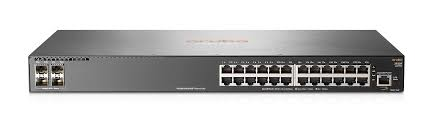
Managing existing hardware efficiently is a top priority for IT administrators, network engineers, and system integrators, especially when facing tight budgets or aggressive deployment timelines. If you are dealing with an Aruba 2930F switch that has a confusing legacy configuration, a forgotten administrative password, or is being redeployed to a remote office, performing a factory reset on Aruba 2930F is often the most reliable way to restore full control and prepare the device for safe redeployment.
Executing a factory reset on ProVision-based switches like the 2930F requires careful procedural knowledge to avoid network downtime, configuration loss, or accidental service interruptions. This guide explains every method—physical button, CLI, and recovery—so you can confidently perform a hard or soft factory reset while maintaining access and minimizing operational risks.
Important Note: Resetting the switch to factory defaults erases all configurations, including VLAN settings, passwords, port assignments, and security profiles. Always back up any accessible configurations before proceeding.
When you lose administrative credentials, a hard factory reset on Aruba 2930F is necessary. Aruba 2930F switches typically feature Clear and Reset buttons on the front panel.
Option A: Clearing Passwords Only (Safer Recovery)
Locate the Clear Button: Identify the Clear and Reset buttons.
Clear Credentials: Press and hold the Clear button for more than 5 seconds.
Result: Passwords and usernames are removed, allowing console access with no credentials initially.
Option B: Full Factory Reset (Clear/Reset Button Procedure)
Preparation: Use a paperclip or pin to press recessed Reset and Clear buttons.
Step 1: Press both Reset and Clear buttons simultaneously. Observe the power and fault LEDs.
Step 2: Release Reset while holding Clear.
Step 3: Release Clear when the Self Test LED flashes, indicating a full factory reset.
Pro Tip: On some ProVision switches (e.g., 2620-24-PPoE+), hold both buttons for 10 seconds, then release Reset and continue holding Clear for another 10 seconds for complete reset.
Part 2: Soft Reset – Using the CLI
If you retain administrative access (or cleared passwords via the physical method), the CLI allows a soft reset of Aruba 2930F for fast reprovisioning or batch deployment.
1. Erase Startup Configuration
Example CLI command to erase startup configuration:
Aruba-2930F-3# erase startup-config
Alternative: erase start removes most configuration files.
2. Comprehensive Factory Default Reset
Example CLI command for complete reset:
Aruba-2930F-3# erase all
Confirms reboot and erases all management files except software images.
Confirm with 'y' to continue.
Note: CLI reset is ideal for bulk provisioning. SSH/SSL keys may need manual deletion.
Part 3: Understanding Network Impact
VLAN and IP Configuration
All VLANs and static IPs are erased. Post-reset, the switch requests DHCP; otherwise, set a temporary static IP on your PC to regain access.
PoE Devices
Power to connected PoE devices is momentarily interrupted during reboot. Plan for temporary service disruption.
Stacking and Remote Management
Resetting a single switch may require reconfiguring stack membership. Remote management via Aruba Central or Airwave may need adjustments.
Part 4: Post-Reset Access and Reconfiguration
Default Console Access: Use no credentials after clearing passwords.
Modern Default Login: Often admin with a blank password; set a new password immediately.
Reconnect to Network: Ensure PC IP aligns with the switch’s default IP range.
Tip: If DHCP is unavailable, assign a temporary static IP (e.g., 192.168.1.10) to regain access.
Part 5: FAQ – Common Questions About Aruba 2930F Reset
Where is the Aruba 2930F reset button?
Front panel, with Clear and Reset buttons. Use Clear for passwords or both buttons for full factory reset.
How do I reset a switch if I lost the admin password?
Press and hold Clear >5 seconds. For some newer models, enter Service OS during boot and use password reset.
Does factory reset delete VLAN or PoE configurations?
Yes. PoE devices lose power briefly during reboot.
Physical vs CLI reset – difference?
CLI (erase startup-config or erase all) is software-based, faster for provisioning. Physical (Clear/Reset buttons) is mandatory if credentials are lost.
Can I batch reset multiple Aruba 2930F switches?
CLI reset preferred. Ensure console/SSH access for all devices.
Does reset affect stacking or remote management?
Stacking and remote management may need reconfiguration; impacts vary by topology.
Part 6: Replacement and Procurement Guidance
If the Aruba 2930F is aging or malfunctioning, consider certified pre-owned or new enterprise switches.
For verified inventory and rapid procurement, visit Router-switch, offering Aruba switches and alternatives like Cisco or HPE with immediate shipping options.
Expertise Builds Trust
20+ Years • 200+ Countries • 21500+ Customers/Projects CCIE · JNCIE · NSE7 · ACDX · HPE Master ASE · Dell Server/AI Expert