Solving Warehouse WiFi Coverage and Uptime IssuesDesign reliable warehouse WiFi coverage and uptime with warehouse wifi 6 ap, industrial wireless access points, and warehouse poe switches for racks and docks.
OLT Capacity Planning for GPON Access NetworksPlan OLT capacity for GPON OLT systems and EA5800 capacity planning, optimizing GPON split ratio and OLT uplink design for scalable fiber access.
Enterprise OLT Platform Selection for Fiber AccessDesign enterprise OLT platform strategy for GPON OLT platform, modular OLT chassis, and OLT service boards to scale passive optical LAN and XG-PON evolution.
Scale Data Center Networking Under Long Lead TimesScale data center networking faster under long lead times with data center spine switches, leaf spine data center designs and Cisco UCS fabric interconnects.
Tunnel Video Surveillance VLAN Stability over FiberDesign stable tunnel video surveillance VLANs using optical transport backbone and Arista fiber aggregation for resilient Huawei OptiX OSN CCTV networks.
Fiber vs Copper in Industrial Networks Design GuideCompare fiber vs copper in industrial ethernet, plan hybrid industrial fiber network designs, and select rugged ethernet switches and industrial SFP transceivers.
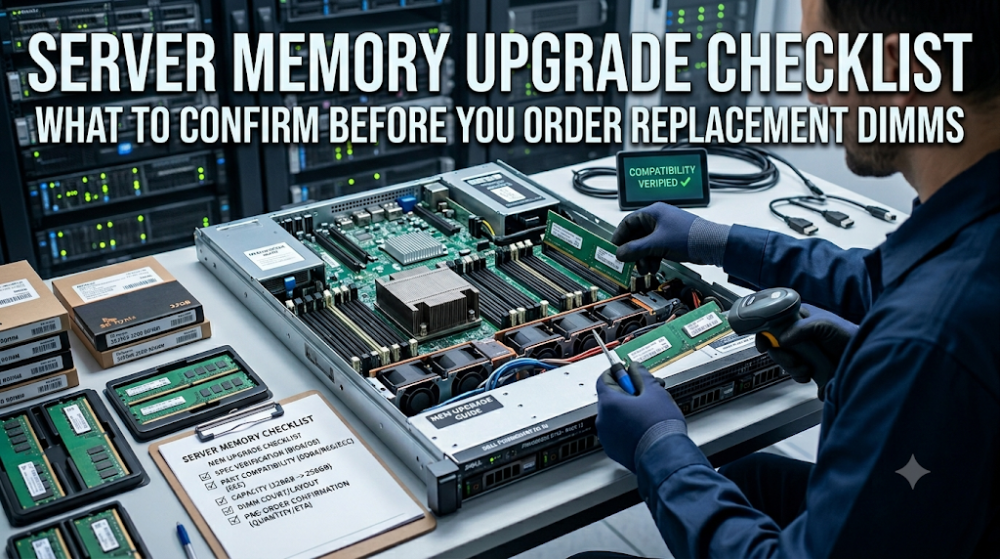
Server memory upgrades are one of the most cost-effective ways to improve performance, extend server life, and support growing workloads. But they are also one of the easiest upgrades to get wrong. A memory module that looks correct on paper can cause boot failures, performance degradation, or stability problems if it does not match the server's specific requirements.
The difference between a successful memory upgrade and a failed one usually comes down to preparation. Buyers who verify compatibility, capacity limits, population rules, and firmware requirements before ordering rarely encounter problems. Those who skip these checks often end up with modules that do not fit, do not work, or do not deliver the expected performance.
This article provides a checklist of what to confirm before ordering replacement DIMMs. It covers the technical checks that matter, the common mistakes that cause problems, and the practical steps that lead to a smooth upgrade.
Confirm the exact server model and generation before ordering. Memory requirements vary between generations of the same server family.
Check the vendor's memory compatibility guide for supported module types. This guide lists valid capacities, speeds, and configurations.
Verify capacity limits per channel and per server. Exceeding the maximum supported capacity causes initialization failures.
Match voltage, rank, and buffer type across all installed modules. Mixing these parameters often forces the memory subsystem to downclock or fail.
Confirm qualification status and firmware compatibility. Some servers reject non-qualified modules or require specific firmware revisions.
Check item
What to confirm
Where to find it
Server model and generation
Exact model number and generation
Server label, BIOS, management interface
Memory type
DDR4, DDR5, RDIMM, LRDIMM, ECC
Vendor compatibility guide
Speed
Supported memory speed (e.g., 3200 MT/s)
Vendor compatibility guide
Capacity limits
Max per slot, per channel, per server
Technical specifications, user guide
Population rules
Slot order, matched pairs, channel balance
User guide, maintenance manual
Voltage and rank
Standard or low voltage, single or dual rank
Compatibility guide, existing module labels
Qualification status
Vendor-qualified part numbers
Vendor compatibility matrix
Part 2: Confirm the server model and generation
Why the exact model matters
Memory requirements change between server generations. A Dell PowerEdge R740 supports DDR4 RDIMM and LRDIMM modules. A PowerEdge R750 supports DDR5. An HPE ProLiant DL380 Gen10 has different population rules than a Gen11. Ordering memory for the wrong generation is a common and expensive mistake.
How to identify the server
Check the physical server label, the BIOS information screen, or the remote management interface (iDRAC, iLO, or Cisco CIMC). Record the exact model number, generation, and current BIOS or firmware version. This information is the starting point for all compatibility checks.
Part 3: Check memory type and speed compatibility
DDR generation
Confirm whether the server supports DDR4, DDR5, or another generation. DDR4 and DDR5 modules are physically incompatible and cannot be mixed. Ordering the wrong generation results in modules that do not fit the slots.
Module type
Verify whether the server requires RDIMM, LRDIMM, or UDIMM modules. Most enterprise servers use RDIMM or LRDIMM. Mixing module types in the same server is rarely supported and usually causes boot failures.
Speed
Check the supported memory speed for the server and processor configuration. Installing faster modules than supported usually causes them to downclock. Installing slower modules may limit performance. Match the speed to the platform's capabilities and the existing modules if not replacing all of them.
Part 4: Verify capacity limits and population rules
Per-slot capacity
Each server generation supports a maximum capacity per memory slot. Exceeding this limit causes the module to be unrecognized or the system to fail initialization. Check the technical specifications for the maximum supported module size.
Per-channel and per-server capacity
In addition to per-slot limits, servers have maximum capacity per channel and per system. These limits depend on the processor model, the number of memory controllers, and the platform design. Verify that the planned total capacity does not exceed the system maximum.
Population rules
Most servers require memory slots to be filled in a specific order. Some require matched pairs or quads. Others have restrictions on mixing capacities. The user guide or maintenance manual documents these rules. Following them is essential for successful initialization and optimal performance.
Part 5: Validate voltage and rank requirements
Voltage
Server memory modules operate at standard voltage (1.2V for DDR4, 1.1V for DDR5) or low voltage (1.35V for DDR4). Mixing standard and low-voltage modules in the same server is usually not supported. Match the voltage of new modules to the existing configuration or replace all modules with a consistent set.
Rank
Memory modules can be single-rank, dual-rank, or quad-rank. Some servers have restrictions on rank mixing or perform best with specific rank configurations. Check the compatibility guide for rank requirements and match the new modules accordingly.
Part 6: Check qualification and firmware status
Vendor qualification
Major server vendors maintain qualification lists for memory modules. If the server enforces qualified-part validation, non-qualified modules may cause boot failures or void support coverage. Check the vendor's compatibility matrix and order qualified parts when required.
Firmware compatibility
Some servers require specific firmware versions on installed memory modules. Newer modules may ship with firmware that is too new or too old for the server's memory controller. Verify firmware compatibility with the vendor or supplier before ordering.
Part 7: Common buyer mistakes
Mistake 1: Ordering without checking the compatibility guide
The compatibility guide is the definitive source for supported configurations. Skipping it is the fastest way to order the wrong modules.
Mistake 2: Mixing DDR generations
DDR4 and DDR5 modules are physically and electrically incompatible. Verify the supported generation before ordering.
Mistake 3: Exceeding capacity limits
Installing modules that exceed per-slot or per-server capacity limits causes initialization failures. Check the limits before planning the upgrade.
Mistake 4: Ignoring population rules
Filling slots in the wrong order or mixing unsupported configurations prevents the server from recognizing all installed memory.
FAQ
How do I find the memory compatibility guide for my server?
Check the server vendor's support website. Dell, HPE, Cisco, and Lenovo all publish memory compatibility guides for each server generation. Search by exact model number.
Can I mix different memory speeds in the same server?
Usually no. Most servers require all modules to run at the same speed. Mixing speeds forces the entire memory subsystem to downclock to the slowest module.
What is the difference between RDIMM and LRDIMM?
RDIMM uses a register to buffer address and command signals. LRDIMM adds a buffer that reduces electrical load, enabling higher capacity. Most servers support one or the other, not both.
Do I need to replace all memory modules at once?
Not necessarily, but all installed modules must be compatible. If the existing modules are old or uncommon, replacing all of them with a consistent new set may be simpler and more reliable.
What should I do if the server does not recognize the new memory?
Check that the modules are installed in the correct slots, that the population rules are followed, and that the modules match the compatibility guide. If problems persist, verify qualification status and firmware compatibility with the vendor.
Part 8: How to turn this into a buying decision
A successful server memory upgrade starts with verification, not with the order. Confirm the server model and generation, check the vendor's compatibility guide for supported types and speeds, verify capacity limits and population rules, match voltage and rank, and confirm qualification status. These checks take minutes but save hours of troubleshooting and the cost of returning incompatible modules.
Before placing any memory order, document the current configuration, the planned upgrade, and the validated part numbers. This documentation simplifies future upgrades and provides a reference if questions arise later.
If your project involves a server memory upgrade and you need help confirming compatibility or sourcing qualified modules, Router-Switch can help check specifications and availability across Dell, HPE, Cisco, Lenovo, and other platforms. The fastest path to a successful upgrade is confirming the requirements first, then ordering modules that match them exactly.
Expertise Builds Trust
20+ Years • 200+ Countries • 21500+ Customers/Projects CCIE · JNCIE · NSE7 · ACDX · HPE Master ASE · Dell Server/AI Expert