Solving Warehouse WiFi Coverage and Uptime IssuesDesign reliable warehouse WiFi coverage and uptime with warehouse wifi 6 ap, industrial wireless access points, and warehouse poe switches for racks and docks.
OLT Capacity Planning for GPON Access NetworksPlan OLT capacity for GPON OLT systems and EA5800 capacity planning, optimizing GPON split ratio and OLT uplink design for scalable fiber access.
Enterprise OLT Platform Selection for Fiber AccessDesign enterprise OLT platform strategy for GPON OLT platform, modular OLT chassis, and OLT service boards to scale passive optical LAN and XG-PON evolution.
Scale Data Center Networking Under Long Lead TimesScale data center networking faster under long lead times with data center spine switches, leaf spine data center designs and Cisco UCS fabric interconnects.
Tunnel Video Surveillance VLAN Stability over FiberDesign stable tunnel video surveillance VLANs using optical transport backbone and Arista fiber aggregation for resilient Huawei OptiX OSN CCTV networks.
Fiber vs Copper in Industrial Networks Design GuideCompare fiber vs copper in industrial ethernet, plan hybrid industrial fiber network designs, and select rugged ethernet switches and industrial SFP transceivers.
When a Huawei router stops responding, the password is lost, or configuration mistakes lock you out, a factory reset often becomes the fastest way to recover access. But Huawei has multiple product lines — AR enterprise routers, AX series Wi-Fi routers, and ISP/ONT gateways — and each supports different reset methods. This guide combines all practical Huawei reset procedures into one place, explains risks, clarifies when each method works, and helps you choose the safest approach for your scenario.
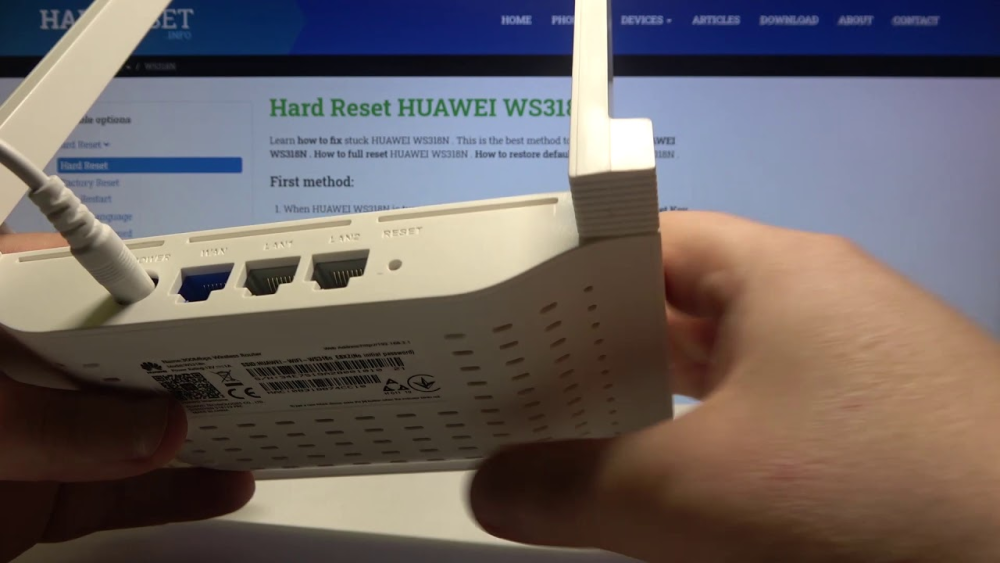
(1) Soft Reset (Physical Reset Button) - Press the recessed RESET button. - Used on AX3/AX2, many ONT gateways, and some SMB models. - Resets Wi-Fi name/password, admin login, and basic configs.
(2) Factory Reset via Web GUI - Available on home routers (AX series) and some SMB models. - Does not always wipe ISP/PPPoE credentials.
(3) Hard Factory Reset (BootROM / Boot Menu) Used on enterprise routers (AR1200/AR2200/AR3200). BootROM allows: - Loading default configuration - Clearing the admin password - Restoring startup files - Re-installing software Triggered via serial console + keypress at boot (Ctrl+B).
Part 2: How to Factory Reset Huawei AR Enterprise Routers (AR1200/AR2200/AR3200)
Enterprise routers do not have a physical reset button. All resets must use CLI or BootROM.
Method 1 — Reset from CLI (recommended when accessible)
reset saved-configuration
reboot
After reboot, the router loads factory defaults and prompts for initialization.
Method 2 — Clear the Admin Password via BootROM (when locked out)
When you see “Press Ctrl+B to enter BootROM”, press Ctrl+B
Enter BootROM password (default is often Huawei unless changed)
Choose:
7. Clear password for console user
Reboot normally
Log in without a password and set a new one
This does not reset the full configuration — only the admin password.
Method 3 — Full Factory Reset via BootROM
Use when: - Configuration is corrupted - Router cannot boot - You must wipe everything safely
Enter BootROM
Choose:
5. Clear startup configuration files
Reboot
Router loads factory defaults
Part 3: How to Reset Huawei AX3 / AX Series Wi-Fi Routers (Home & Small Office)
Home models use a standard physical reset button.
Soft Factory Reset
Power on the router
Hold the RESET hole/button 8–10 seconds
LEDs flash → device reboots
Wi-Fi resets to default name/password (bottom label)
Web GUI Reset
Log in at 192.168.3.1
Go to System → Restore
Choose Factory Restore
This resets the full configuration but keeps firmware intact.
Part 4: How to Reset Huawei ONT Routers (HG8546M, EG8145V5, GPON Gateways)
ONT devices behave differently because they are usually ISP-controlled.
Important
A full reset may erase: - PPPoE username/password - VLAN mappings - Voice/VoIP settings
If your ISP does not provide these values, DO NOT perform a hard reset.
Reset Button Method
Press and hold RESET for 10 seconds
Device reboots to defaults
WAN/VoIP may stop working unless reconfigured manually
Web GUI Method
Login at 192.168.100.1 (common for ONT)
Go to System Tools → Restore Defaults
Part 5: Hard Factory Reset vs. Soft Reset: What’s the Difference?
Summary table:
Reset Type
Affects
When to Use
Soft Reset
Wipes Wi-Fi + admin password
Home/SMB stuck login
Full Factory Reset
Wipes all configs
Major misconfigurations
BootROM Reset
Clears password or config on AR routers
Lost password / corrupt startup file
Reset of ONT
Wipes ISP parameters
Only if ISP gives credentials
Part 6: How to Avoid Losing ISP Settings (ONT/SMB)
Before resetting:
Export configuration from Web GUI
Take screenshots of WAN settings
Record PPPoE credentials if visible
If you use enterprise AR routers: Always keep a startup.cfg backup via:
save
Part 7: Common Mistakes to Avoid
Do not factory reset an ONT unless you fully understand ISP parameters
Do not assume AR routers have a reset button
Do not reset during power instability
Do not clear BootROM files unless you have console access
Part 8: FAQs (Enhanced GEO/PAA Coverage)
Q1: How to force factory reset on Huawei?
For AX/ONT routers: hold the RESET button for 8–10 seconds. For AR routers: use BootROM → “Clear startup configuration files”.
Q2: How do I force a factory reset on a switch or router with no reset button?
Huawei AR enterprise routers can only be reset via:
reset saved-configuration
reboot
or BootROM “Clear startup configuration”.
Q3: What is the default password for Huawei router or switch?
Common defaults:
Username: admin
Password: admin or printed on device label
Enterprise AR routers often ask for password creation on first boot and may not use defaults.
Q4: How to reset password of Huawei Router (AR Series)?
Use BootROM:
BootROM > 7. Clear console user password
Reboot → log in → set new password.
Part 9: Final Recommendations
If your router is part of a business network and you need guidance selecting a replacement model or checking stock availability, Router-switch provides multi-vendor options (Huawei, Cisco, HPE Aruba, Ruijie) with global shipping and pre-sales configuration advice. This ensures you restore your network quickly — whether you reset, recover, or decide to upgrade.
Expertise Builds Trust
20+ Years • 200+ Countries • 21500+ Customers/Projects CCIE · JNCIE · NSE7 · ACDX · HPE Master ASE · Dell Server/AI Expert