Solving Warehouse WiFi Coverage and Uptime IssuesDesign reliable warehouse WiFi coverage and uptime with warehouse wifi 6 ap, industrial wireless access points, and warehouse poe switches for racks and docks.
OLT Capacity Planning for GPON Access NetworksPlan OLT capacity for GPON OLT systems and EA5800 capacity planning, optimizing GPON split ratio and OLT uplink design for scalable fiber access.
Enterprise OLT Platform Selection for Fiber AccessDesign enterprise OLT platform strategy for GPON OLT platform, modular OLT chassis, and OLT service boards to scale passive optical LAN and XG-PON evolution.
Scale Data Center Networking Under Long Lead TimesScale data center networking faster under long lead times with data center spine switches, leaf spine data center designs and Cisco UCS fabric interconnects.
Tunnel Video Surveillance VLAN Stability over FiberDesign stable tunnel video surveillance VLANs using optical transport backbone and Arista fiber aggregation for resilient Huawei OptiX OSN CCTV networks.
Fiber vs Copper in Industrial Networks Design GuideCompare fiber vs copper in industrial ethernet, plan hybrid industrial fiber network designs, and select rugged ethernet switches and industrial SFP transceivers.
Importing network objects into Cisco FMC (Firepower Management Center) can be done through two main methods: a GUI-based bulk upload introduced in version 6.7, or via the REST API. These approaches help streamline large-scale IP address configuration, saving time during deployment and policy management for Cisco Firepower Threat Defense (FTD) devices.
What Are Network Objects in Cisco FMC?
Network objects in Cisco FMC are reusable, named entities that define IP addresses, subnets, ranges, FQDNs, or groups. Instead of entering IPs manually in policies, you assign the named object, improving consistency and simplifying configuration.
Network objects can include:
Host: A single IP (e.g., 209.165.200.225)
Range: IP range (e.g., 209.165.200.225-209.165.200.250)
Network: Subnet block (e.g., 209.165.200.224/27)
FQDN: A domain (e.g., www.example.com)
Group: A collection of other network objects or groups, nested up to 10 levels
Why Import Network Objects in Bulk?
Manually entering dozens or hundreds of IPs is time-consuming. Bulk importing network objects:
Reduces manual effort
Supports faster deployment (e.g., adding 800 IPs for a client site)
Enables standardized policy configuration
Fits into automation and Day-0/Day-1 setups
Methods to Import Network Objects in Cisco FMC
1. GUI Bulk Import (FMC 6.7 and Later)
Starting with FMC version 6.7, the platform supports bulk import of objects via CSV through the web interface.
Supported Object Types and CSV Headers
You can upload up to 1,000 entries per CSV file, with a size limit of 1MB. Column headers must be included and are case-sensitive.
Object Type
Required CSV Headers
Additional Fields
Network Object
NAME, VALUE
DESCRIPTION, TYPE, LOOKUP
Port
NAME
PROTOCOL, PORT, ICMPCODE, ICMPTYPE
URL
NAME, URL
DESCRIPTION
VLAN Tag
NAME, TAG
DESCRIPTION
Distinguished Name
NAME, DN
—
Note: For network objects, TYPE can be fqdn, and LOOKUP can be ipv4, ipv6, or ipv4_ipv6.
Step-by-Step GUI Procedure
Go to Objects > Object Management
Select the object type (e.g., Network Object)
Click Import Object from the Add menu
Choose your CSV file and click Open
Click Import
Review the import status for success or error messages
For Distinguished Name objects, you can assign imported entries directly to an existing group during import.
2. REST API Import (All FMC Versions)
If your FMC version is below 6.7, or you need greater automation control, the REST API can be used to create network objects programmatically.
When to Use the API:
Your FMC version is 6.6.x or earlier
You are integrating object creation into automation workflows
You need to process more than 1,000 entries or automate updates
Use the built-in API Explorer at https:///api/api-explorer to interact with the REST endpoints.
Importing Object Groups
Step 1: Create the group manually in FMC GUI Step 2: Import individual objects Step 3: Assign those objects into the group manually or via API
Object groups cannot be created directly via the GUI import. Use API methods or perform group assignment afterward.
Best Practices for Cisco FMC Network Object Import
✅ Verify FMC version: GUI import requires FMC 6.7+ ✅ Use proper CSV format: Header names are mandatory and case-sensitive ✅ Ensure name uniqueness: Avoid object name conflicts ✅ Plan for deployment: Imported objects used in policies require redeployment ✅ Respect limits: Up to 1,000 entries or 1MB per file ✅ Consider Security Intelligence feeds: For massive IP lists, use threat intelligence instead of manual objects
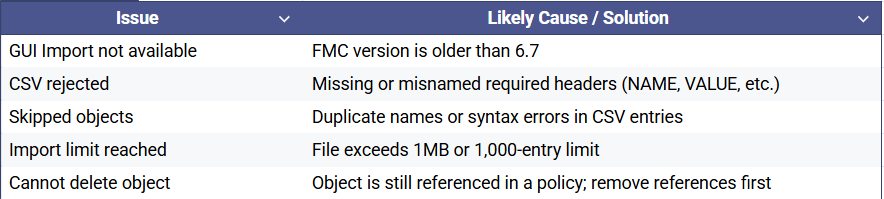
Troubleshooting Import Issues
FAQ Section
Q1: How do I import network objects into Cisco FMC using CSV?
A: In FMC 6.7 or later, go to Objects > Object Management > Network Object, click Import Object, and upload your formatted CSV file.
Q2: Can I bulk import objects to FMC using CLI?
A: No. Bulk import must be performed using the FMC GUI or REST API. CLI access is not available for this operation.
Q3: What’s the fastest way to add many IP addresses to Cisco FMC?
A: Use the GUI bulk upload feature with CSV in FMC 6.7 or later. It allows up to 1,000 entries per file.
Q4: Is there an API to import objects into FMC?
A: Yes. The Cisco FMC REST API supports object creation and import via API Explorer or automation tools.
Q5: Can I import network object groups directly?
A: No. You must create the group separately and add individual members afterward, manually or via API.
Expertise Builds Trust
20+ Years • 200+ Countries • 21500+ Customers/Projects
CCIE · JNCIE · NSE7 · ACDX · HPE Master ASE · Dell Server/AI Expert