Solving Warehouse WiFi Coverage and Uptime IssuesDesign reliable warehouse WiFi coverage and uptime with warehouse wifi 6 ap, industrial wireless access points, and warehouse poe switches for racks and docks.
OLT Capacity Planning for GPON Access NetworksPlan OLT capacity for GPON OLT systems and EA5800 capacity planning, optimizing GPON split ratio and OLT uplink design for scalable fiber access.
Enterprise OLT Platform Selection for Fiber AccessDesign enterprise OLT platform strategy for GPON OLT platform, modular OLT chassis, and OLT service boards to scale passive optical LAN and XG-PON evolution.
Scale Data Center Networking Under Long Lead TimesScale data center networking faster under long lead times with data center spine switches, leaf spine data center designs and Cisco UCS fabric interconnects.
Tunnel Video Surveillance VLAN Stability over FiberDesign stable tunnel video surveillance VLANs using optical transport backbone and Arista fiber aggregation for resilient Huawei OptiX OSN CCTV networks.
Fiber vs Copper in Industrial Networks Design GuideCompare fiber vs copper in industrial ethernet, plan hybrid industrial fiber network designs, and select rugged ethernet switches and industrial SFP transceivers.
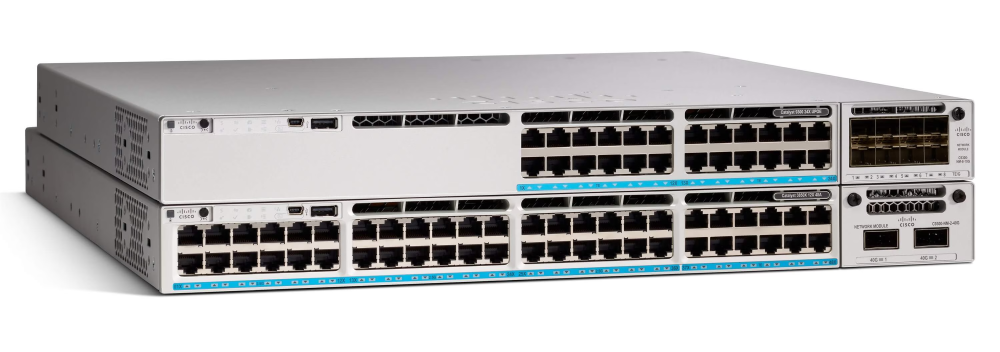
A Cisco Catalyst 9300 switch stuck in a boot loop can cause critical network outages in enterprise environments. Understanding the root causes and following structured troubleshooting steps is essential to restore stability efficiently. This guide covers Catalyst 9300 boot loop causes, ROMMON recovery, stack misconfiguration fixes, and IOS recovery via USB, along with best practices to prevent future issues.
A switch is considered in a boot loop if it shows:
Repeated boot attempts: Cycles through flash:packages.conf repeatedly and reloads.
Critical process failures: Console logs indicate failures like cmand rc 134.
ROMMON prompt: Appears as switch: after multiple failed boots.
No console output: LEDs may be active, but the switch does not respond.
Power-related recovery issues: Switch may not automatically recover after power interruptions if redundant power is not present.
Part2 – Root Causes of Boot Loops
Software and Boot Variables
Corrupted or missing IOS image: Required .bin file is damaged or absent.
Incorrect boot variables:BOOT variable points to an invalid path.
Configuration register misalignment: Default is usually 0x102; misconfiguration can prevent boot.
Stack 1+1 misconfiguration: Active/Standby selection fails due to STACK_1_1 variable in stack setups.
Environmental and Hardware Factors
Frequent power interruptions can force the switch into ROMMON mode.
Hardware failures, such as flash memory or power module issues, may prevent boot and console output.
Part3 – Catalyst 9300 Troubleshooting Steps
Step 1: Access ROMMON
Connect via the console port.
Press the Mode button during startup to enter ROMMON if the switch is in a boot loop.
In ROMMON, the prompt appears as switch:. Use boot to attempt a manual boot if needed.
Step 2: Check Boot Variables and Stack Configuration
switch: set          # Display current boot variables
switch: unset STACK_1_1  # Clear stack 1+1 misconfiguration if present
switch: boot         # Attempt normal boot
Notes:
For stacked switches, check each member individually for STACK_1_1 misconfigurations.
Sequentially clear the variable per member if necessary to prevent repeated reloads.
Step 3: IOS Recovery via USB
Prepare a known-good .bin IOS image on a USB stick.
Insert the USB and verify with dir usbflash0:.
Set temporary boot instruction: switch: set boot=flash:filename.bin *(replace filename.bin with actual file name)*
Reload the switch: reset.
Copy the image to local flash: Switch# copy usbflash0:filename.bin flash:
Configure permanent boot:
Switch(config)# no boot system
Switch(config)# boot system flash:filename.bin
Switch# write memory
Step 4: Emergency Install / Factory Reset
If issues persist, execute emergency-install in ROMMON.
Persistent boot failures after this may indicate hardware problems. Replacement modules or new Catalyst 9300 switches may be required, which can be sourced from Router-switch.com along with professional network solutions.
Part4 – Best Practices to Prevent Boot Loops
Redundant power and UPS: Ensure stable power to prevent boot interruptions.
Monitor console output: Regularly log console messages to detect early issues.
Maintain updated IOS versions: Avoid known boot-related bugs.
Validate boot variables: Regularly check with show boot to confirm correct paths.
Part5 – FAQ – Catalyst 9300 Boot Issues
Q1: How to fix a switch boot loop? A1: Enter ROMMON, check and correct boot variables, clear STACK_1_1 if applicable, and boot from a verified IOS image. Persistent issues may require emergency-install or hardware replacement.
Q2: How to reset a Catalyst 9300 switch? A2: Clear old boot instructions (no boot system) and set a new boot path. For continuous boot loops, perform emergency-install in ROMMON.
Q3: How do you clear stack mode on a switch? A3: In ROMMON, use set to identify stack variables and unset STACK_1_1 to clear misconfigurations. Apply sequentially for each member in a stack.
Q4: Where is the Mode button on Cisco 9300? A4: Press during boot to force entry into ROMMON (switch:) for recovery or troubleshooting.
For professional network solutions, replacement modules, or further technical support for Catalyst 9300 switches, visit Router-switch.
Expertise Builds Trust
20+ Years • 200+ Countries • 21500+ Customers/Projects CCIE · JNCIE · NSE7 · ACDX · HPE Master ASE · Dell Server/AI Expert